How our AutoQA Agent works
Usage
AutoQA Agent usage
Web apps, on desktop and mobile screens
You can use it on any web app. It tests the desktop layout and the mobile layout of the same site.
Behind the login
Give it a test account and it explores and tests the pages that need you to be signed in.
One command
A run starts with one command. Watch it work in a visible browser with the live panel, or let it run in the background.
Tests that repair themselves
When your UI changes, it repairs the tests that broke and leaves real bugs failing.
The run
How a run executes through the AutoQA Agent
- 01
Start
Set it up once. Then give it your app's address and, if the app has a login, a test account. One command starts the run.
- 02
Explore
It opens your app in a real browser and clicks through it like a new team member, first signed out and then signed in. It maps every user journey it finds.
- 03
Plan
It ranks those journeys by risk, so the most important paths are tested first. It also notes what is not worth testing, and why.
- 04
Write
It writes the automated tests in Playwright, in one consistent style that your team can read, run and extend.
- 05
Run and triage
It runs the tests. It fixes its own test mistakes, leaves real bugs failing, and writes a bug report for each, with the steps to reproduce it.
- 06
Report
You get a report of what passed, what failed and why, and what it chose not to test.
Every step the agent takes is recorded. You can watch it work live, or replay the whole run afterwards.
Watch a real run
Security
What happens to the credentials
- 01
They stay on your machine
You keep the test account's username and password in a private settings file on your own computer. The AutoQA Agent is blocked from opening it.
- 02
Handed straight to the browser
When a run starts, the login details go directly to the browser the agent uses. That copy is deleted the moment the run ends.
- 03
Not shown to the AI
The agent signs in without being given the password. It refers to it only by a label, and the browser fills in the real value.
- 04
Hidden in every record
The real values are masked in everything the agent reads back, and again in the logs and the live view of the run.
- 05
Kept out of your code
The tests sign in once and reuse that session. No username or password is written into the tests or saved in your repository. Use a dedicated test account, never a real user's.
Output
The Report
The Report is generated in two formats, Markdown and HTML.
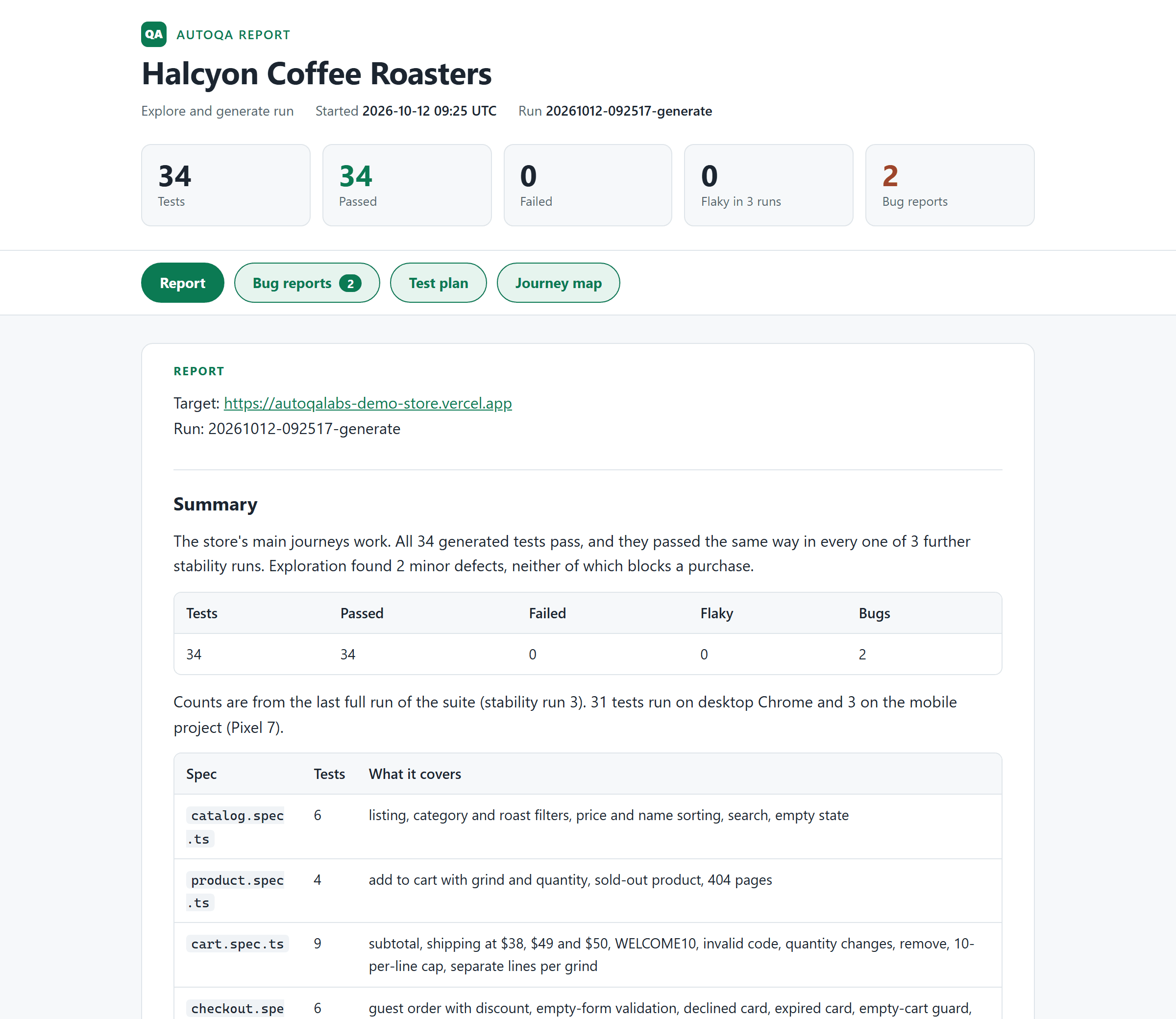
Report Sample 1
AutoQA report
Halcyon Coffee Roasters
- Tests
- 34
- Passed
- 34
- Failed
- 0
- Flaky
- 0
- Bugs
- 2
No test failed in any of the 4 runs of the suite. Both bugs were found during exploration.
Bug list
| ID | Title | Severity |
|---|---|---|
| BUG-01 | Product page says "Added 1 × House Espresso" when the cart line is already at its limit of 10 and nothing was added | minor |
| BUG-02 | Cart buttons for the same coffee in two grinds have identical accessible names | minor |
What works well
- Guest checkout with a discount, and declined and expired cards
- Cart maths: shipping at $38, $49 and $50, discount codes, the 10 per line limit
- Catalogue filters, sorting and search
- Accounts: register, sign in, order history and order privacy
- Category navigation, cart maths and guest checkout on a phone-sized screen
Chosen not to test
- Visual styling, product illustrations and marketing copy: low value and likely to change
- A single-use limit on WELCOME10: the app states no rule to test against
- Real payment and confirmation email: the store simulates payment and sends nothing
Report Sample 2
Free test run
Send us your staging URL. See what our AutoQA Agent finds in 48 hours.
We run the agent on your web app, review the results ourselves and walk you through them. Free, with no commitment.
- A real test run on your app
- A report you keep
- A 20-minute walkthrough